Modern Dev/Test/Live Workflows
Automate CI/CD & Deployments
Bring Your Own Cloud (BYOC)
Built for Serious Agencies
Drupal Chrome Prompt API
Getting started with testing the Chrome Browser Prompt API
Explore a demo which combines the features of Drupal CMS with a small AI model that runs locally directly in your browser. With the Prompt API and Gemini Nano, you can try out the Drupal CMS AI features without costly and complicated API keys.
This is Sovereign AI: fully private and built using open source models you can control. Please note: as it runs on your local machine, you will ideally need 16GB of RAM and may experience a difference in quality compared to paid-for frontier models.
Start here: First create your demo site here on Drupalforge, click Login in the top-right menu. On mobile, open Menu first, then tap Log in. Use username admin and password admin.
Quick start (2 minutes)
- Log in.
- Go to Content, then click Edit on this page.
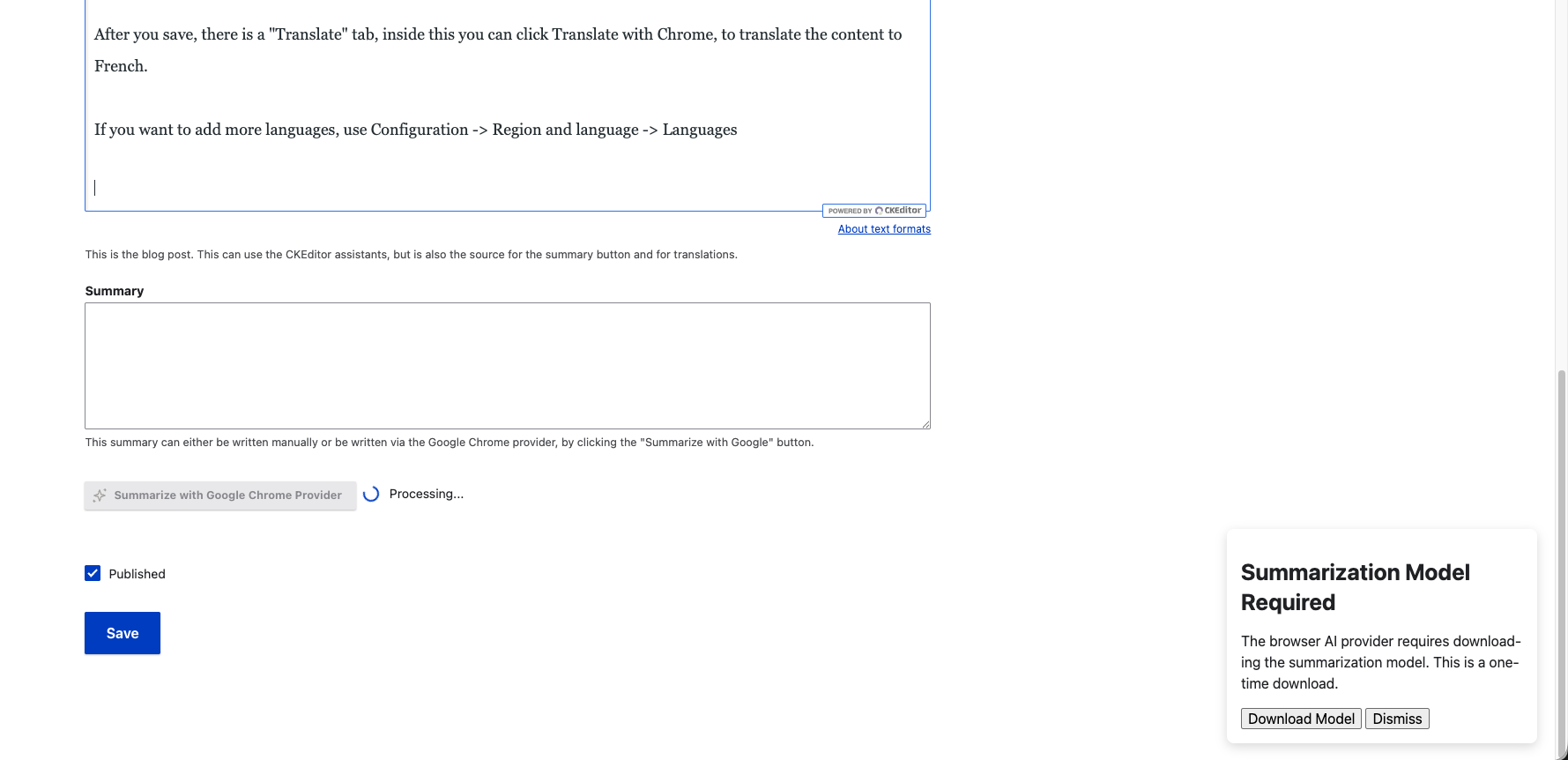
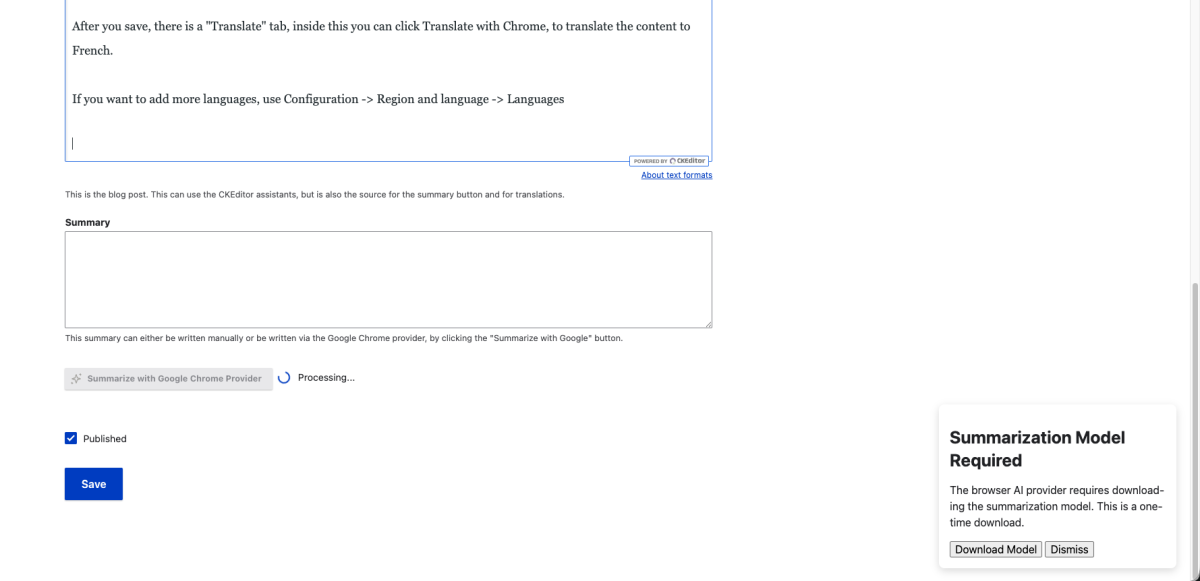
- Complete the one-time Gemini Nano download popup when prompted.
- Test Alt Text Generation, CKEditor Assistants, Summarisation, and Translation.
Demo features include:
- Summarisation: A single button to summarise content directly into the Summary fields on Blog Posts.
- Translation: Simple feature to translate whole pages between English and French.
- Alt Text Generation: Generate alt text for any uploaded image using the Browser AI.
- CKEditor Assistants: Use your local AI to summarise, translate or change the tone of specific text.
- Fully Private Local AI: Example CKEditor buttons to proofread or summarise your text. They work between your browser and its AI directly, opening the door for fully private AI applications. Your data is only sent to the server after you click save.
Your privacy options
- Sovereign AI: Give your organisation full control. These features keep your data private from AI companies but still pass information back to the website host, allowing use of Drupal governance tools, context, and tool calls without an external API.
- Local Browser AI: Data never leaves your machine. These features use only browser AI without sending information to the website host, useful for highly confidential information. This option may limit some functionality and governance and is currently experimental.
If this is your first time you will need to download the model clicking the pop-up:
Frequently Asked Questions
No. ShopForge is a cloud operations platform. Infrastructure hosting functions as a capability managed quietly underneath our orchestration layer, giving you unified control over your environments without proprietary lock-in.
You connect ShopForge directly to your own cloud accounts (AWS, Azure, OVH, or DigitalOcean). ShopForge automates the environment setup and deployment workflows, while you retain total data sovereignty and pay your cloud provider directly for raw infrastructure.
Yes. ShopForge is custom-built to help Shopware agencies standardize operations across their entire portfolio, create isolated client preview environments, and eliminate manual DevOps overhead.
The platform coordinates atomic blue/green deployments. You push code via Git, changes are fully compiled in an isolated build layer, and traffic is switched instantly with built-in rollback protection if anomalies are detected.
Yes. Agencies and freelancers can use ShopForge to quickly spin up client demo and staging environments. Each project has its own isolated workspace, complete with code access and cloud-ready deployment options.
No local setup is required. Your Shopware dev site runs entirely in the cloud, with a full code editor and terminal built in. All you need is a browser to start building or testing right away.
The go-live feature that lets you deploy to your own cloud (AWS, Azure, etc.) is currently in Beta. We’re inviting early testers — just contact us through the site if you’d like to try it out.
Yes — you can share your demo store’s public link to showcase your work, or invite teammates and clients to collaborate in the same environment. It’s perfect for demos, reviews, or team development.
Every ShopForge environment includes a visible timer. If you’re not logged in and the timer runs out, the site is deleted automatically. If you are logged in, you can extend the timer — and when it expires, the site is simply paused (not deleted). You can log back in anytime, go to “My Apps,” and unpause it. Paused sites are kept for up to 30 days before being permanently deleted.
Yes — you can download your entire site anytime. Just open your project in the dashboard, go to the Backups section, create a manual backup, and download it. It’s a quick way to keep a local copy or move your site elsewhere.
Yes — developers and agencies can contribute Shopware templates or demos to the ShopForge library. It’s a great way to showcase your work and help others get started — sites launch in under 5 seconds with no setup required.